1. Lightning Experience Gets a New Look and Feel
#LightningUI
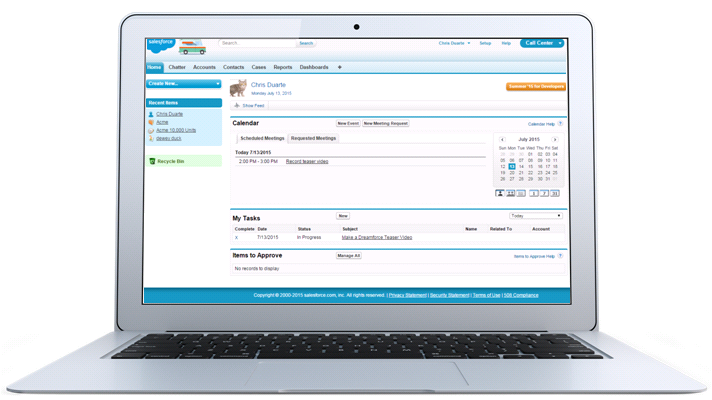
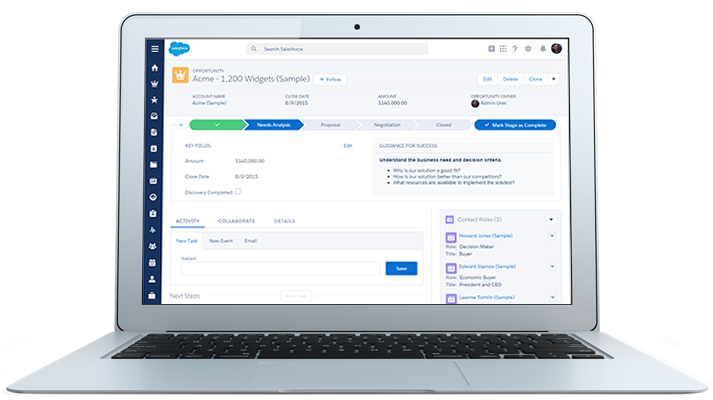
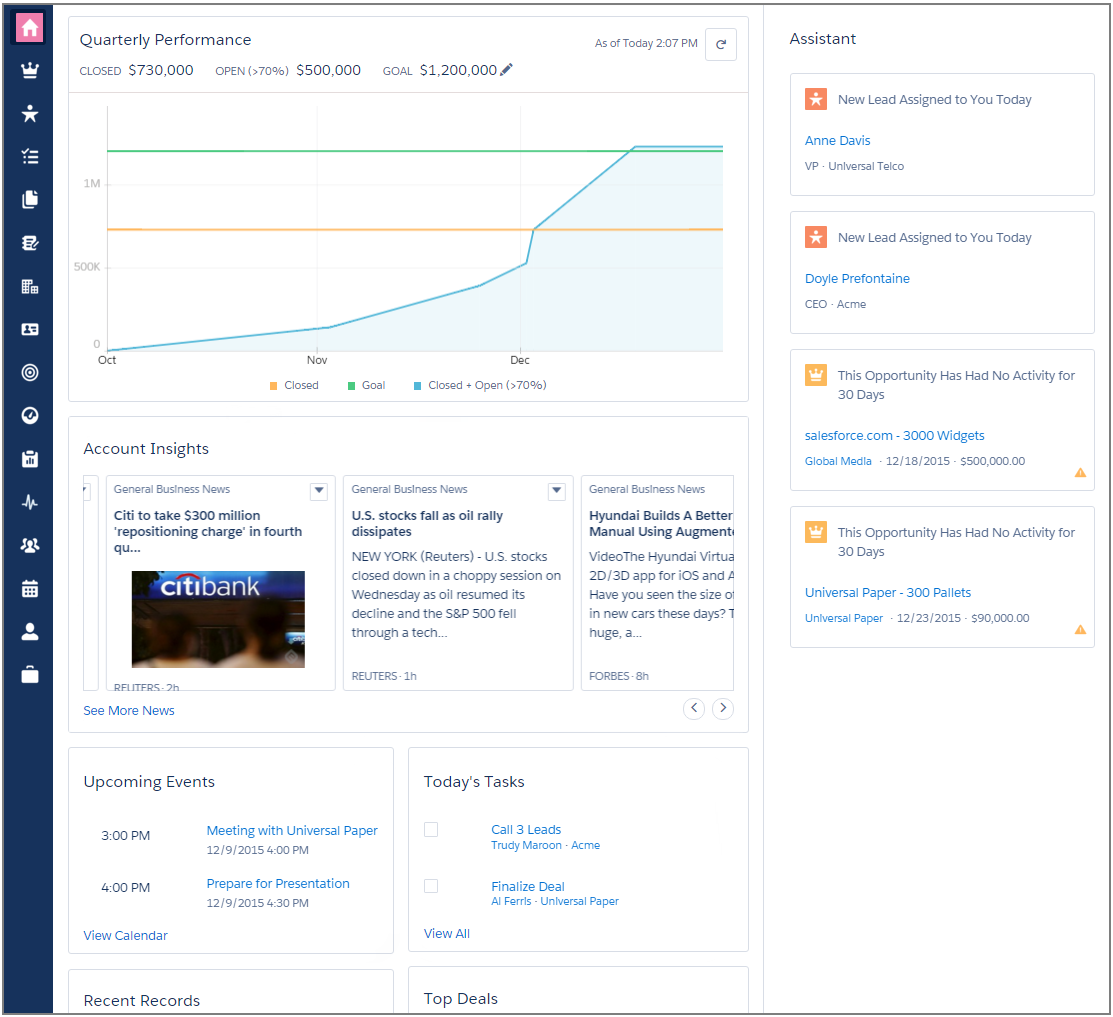
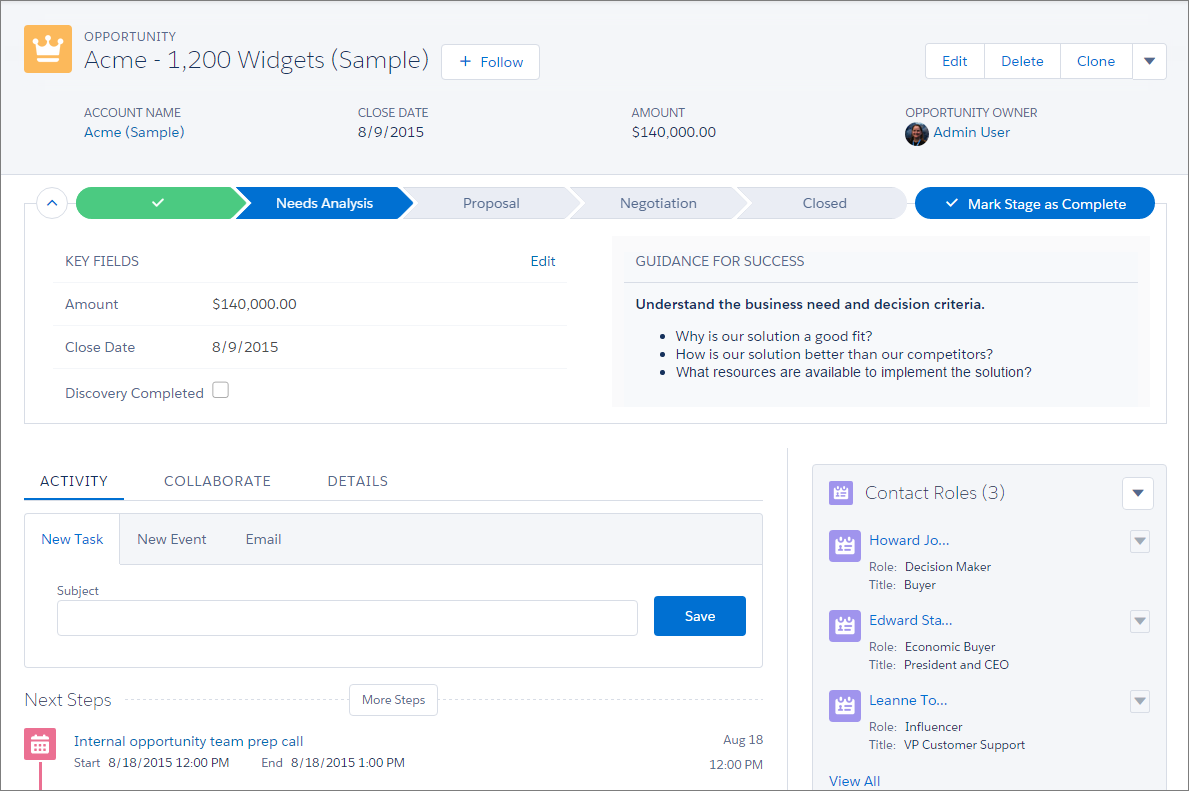
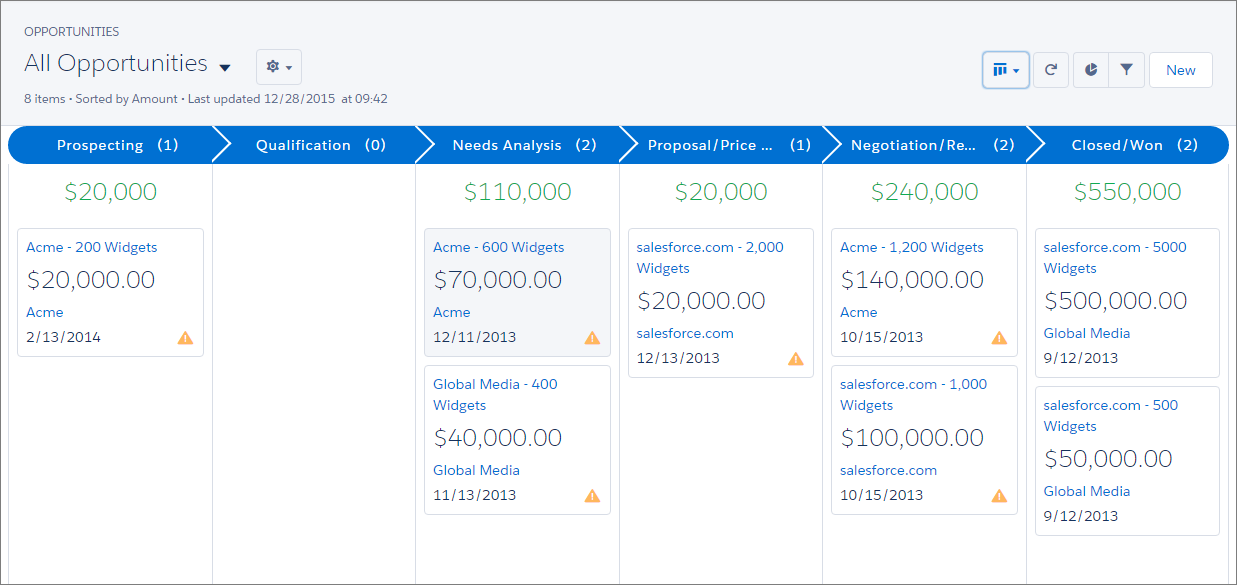
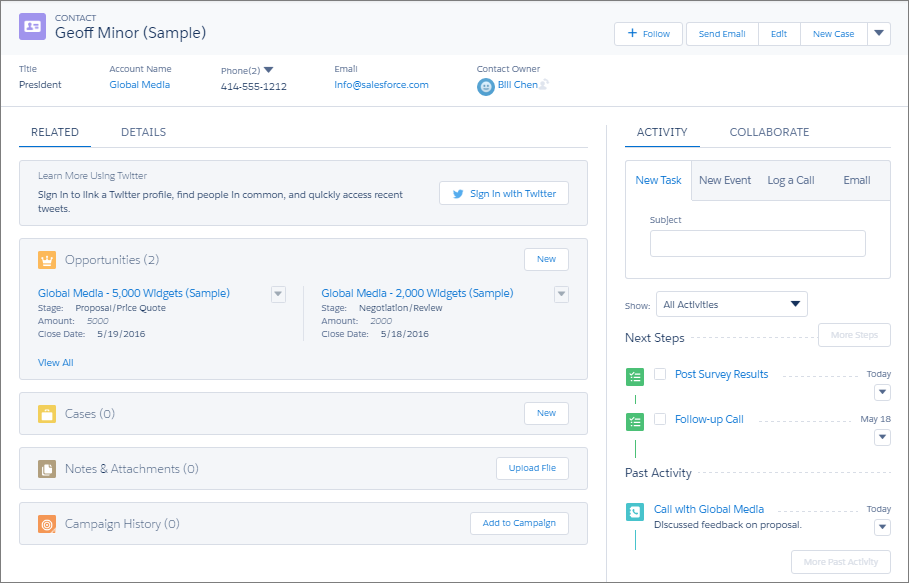
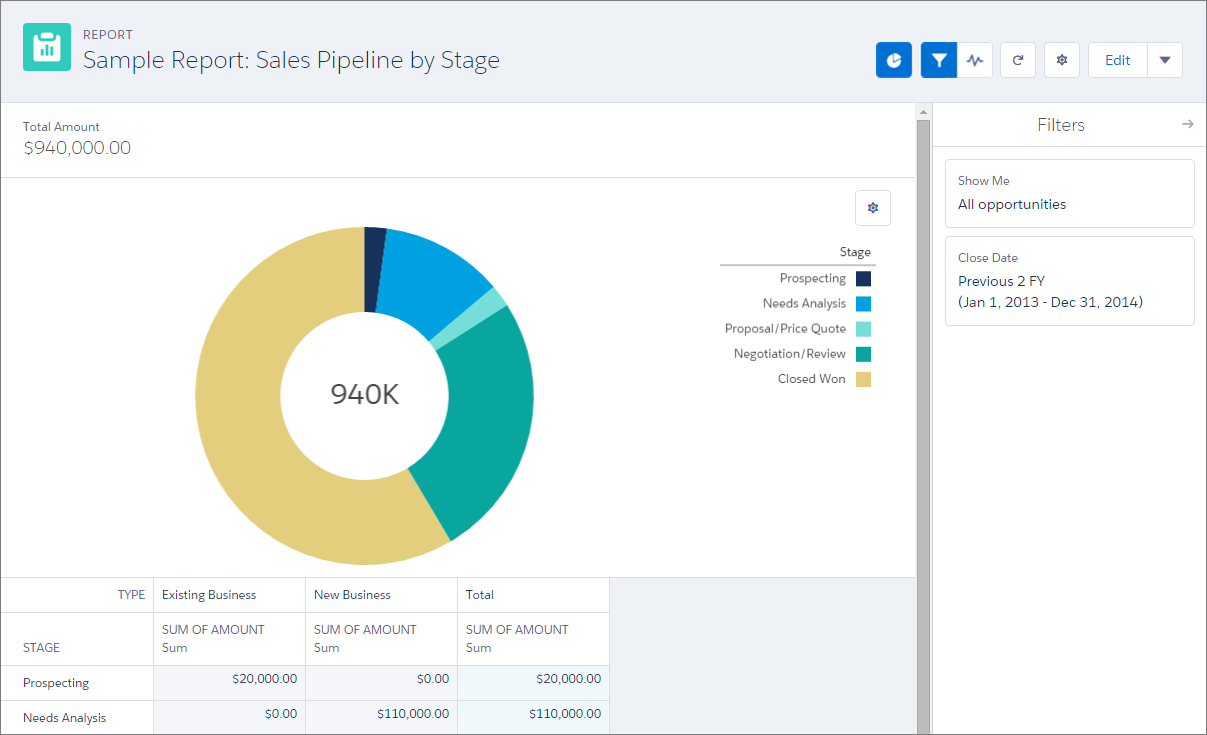
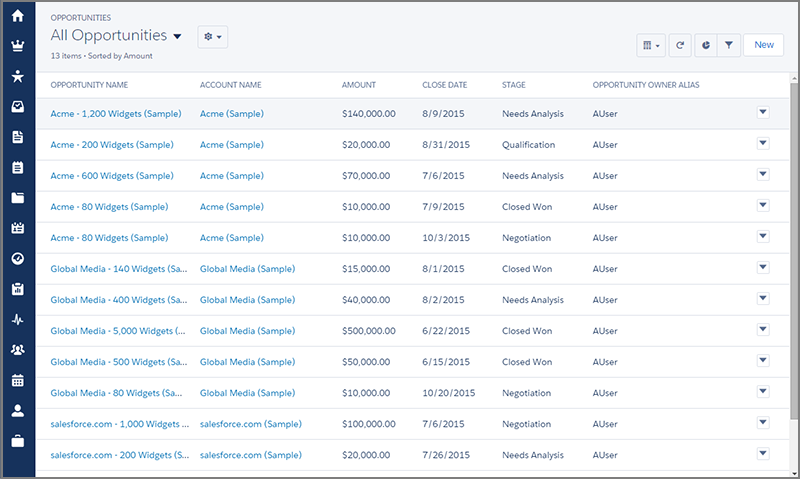
Based on your feedback, we improved information density, legibility, contrast, and even added a splash of color. That means less time scrolling and scanning and more time focused on what matters most. This change applies to Lightning Experience only.
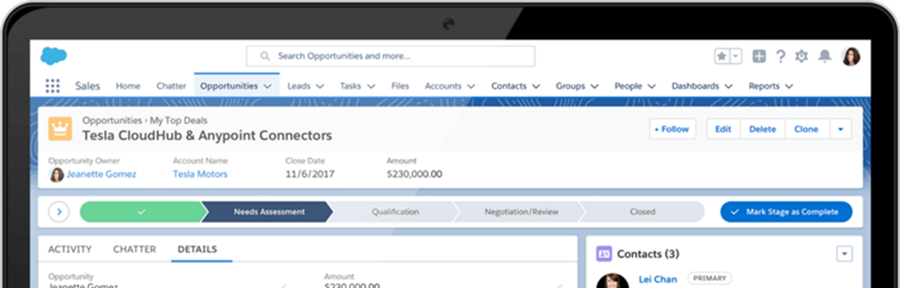
Here’s a closer look at what’s changed.
- More information density and less white space, so you can see more of what you need without scrolling.
- Improved legibility (using font size and color) to draw attention to what’s most important.
- Better contrast between foreground and background, making it easier to scan and scroll while staying focused on what you need. We even added color and a background image inspired by our own Trailhead.
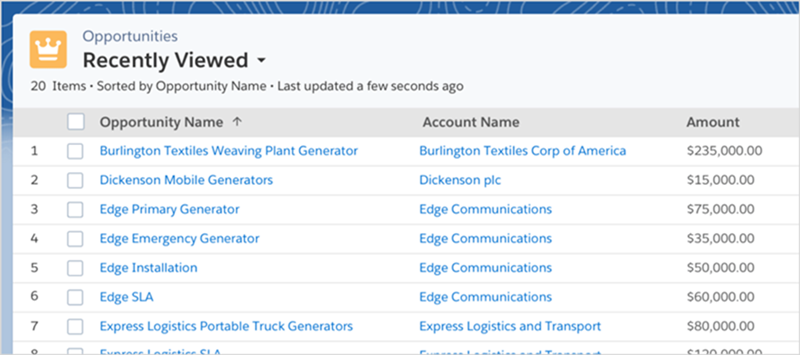
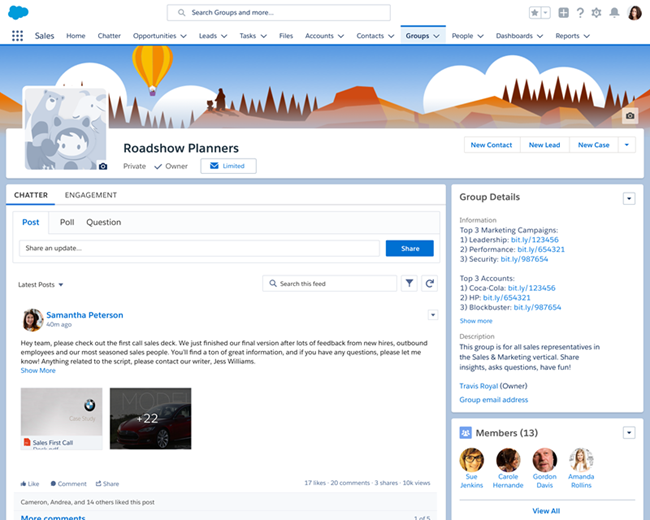
You don’t need to do anything to start enjoying these enhancements. If you like, though, you can change the background image and blue color to a neutral gray. In Setup, enter Themes and Branding in the Quick Find box, then select Themes and Branding, and select Hide.
2. Sales Console: Welcome Forecasting to the Console
#SalesProductivity #Forecasting
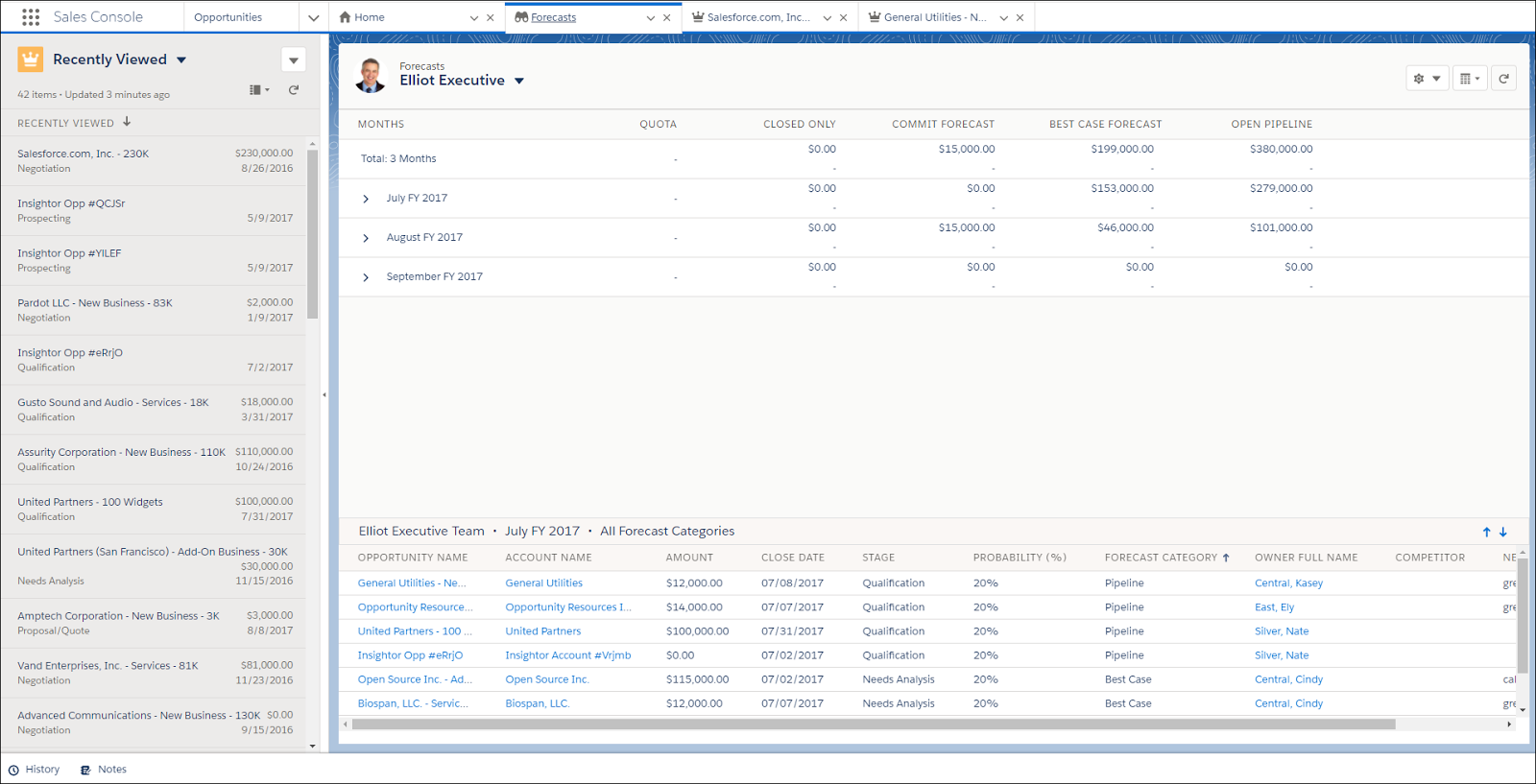
You’ve been patiently waiting for Collaborative Forecasts to come to the Lightning Sales Console. The wait is over! Plus, we’ve made other great improvements to Lightning console apps, including the ability to add favorites, navigation rules to make your users’ workflow more efficient, and additional keyboard shortcuts.
3. List Views: Customizations, Mass Inline Editing, and Text Wrapping
#ListViews #Customizations
Reps can get more done with fewer clicks when working from list views. Edit multiple records from a list view, and wrap text in columns to see more at a glance.
No longer experience excessive white space in columns or content that is out of view. Columns in list views, search results, related lists, and elsewhere, such as the App Manager in Setup, are now sized based on the length of the data within them. When you resize your screen, the columns adjust accordingly. This feature is disabled when you set a fixed column width. This change applies to Lightning Experience only.
Sticky column widths have arrived for Recently Viewed list views, related lists, and search results! Change your column widths, navigate away, and when you return, your custom column widths are still there. This change applies to Lightning Experience only.
You can change the column widths for list views, related lists, and search results. But what if you want to revert all those changes? Just use the new Reset Column Widths setting in the list view controls to get back to the default widths. This change applies to Lightning Experience only.
Tired of seeing only part of each field in a list view? We’ve got you covered, because now you can wrap text in list view columns. This change applies to Lightning Experience only.
Found a list view that you like, but don’t have permission to edit it and save your changes? It’s easy to create a list view by using Save As or Clone and then make a few tweaks. If you created list views in this way using Salesforce Classic, you can now do it in Lightning Experience. This change applies to Lightning Experience only.
Your reps can now update up to 200 records without leaving a list view. This feature is new in Lightning Experience.
4. Lightning Sync for Google: Two-Way Event Sync, Attendee Sync, and Support for More Licenses
#LightningSync #GoogleIntegration
Make your team more productive by setting up events to sync both ways between Google Calendar™ and Salesforce. When you do, you get exclusive access to Salesforce Calendar features that are designed to work with Lightning Sync. We’re also introducing support for users on Service Cloud and Force.com licenses so you can get even more users syncing between Salesforce and Google applications. These changes apply to Lightning Experience, Salesforce Classic, and all versions of the Salesforce1 mobile app.
Lightning Sync is available for Service Cloud and Force.com user licenses. Depending on which objects are available through the license, reps can sync contacts, events, or both between their G Suite accounts and Salesforce. This change applies to Lightning Experience, Salesforce Classic, and all versions of the Salesforce1 mobile app.
Save reps time and unnecessary data entry by setting up events to sync between Google Calendar and Salesforce. That way, reps can create and edit meetings from either application. And admins like you can promote Salesforce adoption by making it easy for reps to get important meetings into Salesforce. This change applies to Lightning Experience and all versions of the Salesforce1 mobile app.
When you set up our enhanced scheduling options for Salesforce Calendar, reps can see their Google Calendar™ attendee details and responses from either system. This change applies to Lightning Experience and all versions of the Salesforce1 mobile app.
5. Lightning Knowledge: Multi-language Orgs, Updated Article Actions, and Video Support
#LightningKnowledge #ServiceCloud
Multi-language orgs can now make the move to Lightning Knowledge. When viewing a case in the console, authors can create an article from the Knowledge component. Authors also have a richer text editing experience with video, and they can see who’s viewing articles with event monitoring. This change applies to Lightning Experience only.
Multi-language orgs can now make the move to Lightning Knowledge. When viewing a case in the console, authors can create an article from the Knowledge component. Authors also have a richer text editing experience with video, and they can see who’s viewing articles with event monitoring. This change applies to Lightning Experience only.
Multi-language orgs are now supported in Lightning Knowledge! You can search and read translated articles in Lightning Knowledge. You still create and manage translated articles in Salesforce Classic This change applies to Lightning Experience only.
Users can create articles from the Knowledge component. This change applies to Lightning Experience only.
Lightning Knowledge authors can create a rich article experience by embedding videos and inserting code blocks. We expanded the list of supported domains for embedding videos in both Salesforce Classic and Lightning Experience.
Make data-driven decisions about your knowledge base content with event monitoring. We added a Knowledge article event type to the EventLogFile standard object for article views. You can see who is viewing articles to better understand how people are using Knowledge within your organization. This change applies to Lightning Experience only.
Track articles that require action by reporting on assignment fields. This change applies to Lightning Experience only.
The data category chooser component is fully accessible in Lightning Knowledge record home. This component supports the full number of data categories you have enabled in your org.
Experience the improved Knowledge article search to find articles and resolve cases faster.
6. Macros in Lightning: Creating Efficient Support Agents and Happy Customers
#Lightning #ServiceCloud
Lightning Macros can revolutionize the way your support agents work! Macros provide the power to automate common repetitive tasks and resolve issues efficiently, so your agents can spend more time doing what they do best: focusing on customer success. With macros in Lightning Experience, you can add the macro utility to your org’s Lightning Console Apps, such as Service Console, and give agents the tools to quickly resolve customer service issues. Agents can send a customer email and update a case status with a single click.
Quickly and easily edit and add instructions to macros using the new Macro Builder point-and-click interface.
The Record Home page is your one-stop-shop to view and manage macros in Lightning.
Create amazing macros in the context of your work by adding the macro utility to your Service Console utility bar.
7. Dynamic Branding: One Community, with a Different Look for Each Audience
#Communities
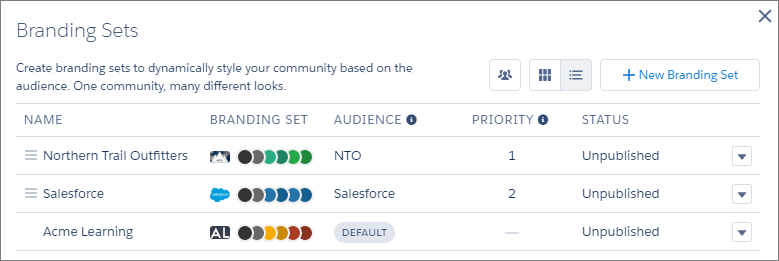
With branding sets, you can change the appearance and style of your community pages based on the audience viewing the page. No need to create individual communities for each customer or business need. Now you build your community once, and simply style it differently for each audience.
Branding sets take advantage of criteria-based audiences in the same way as page variations. Just as you can create several page variations and target them at different audiences, you can create different sets of branding properties to produce a unique look and feel for specific audiences.
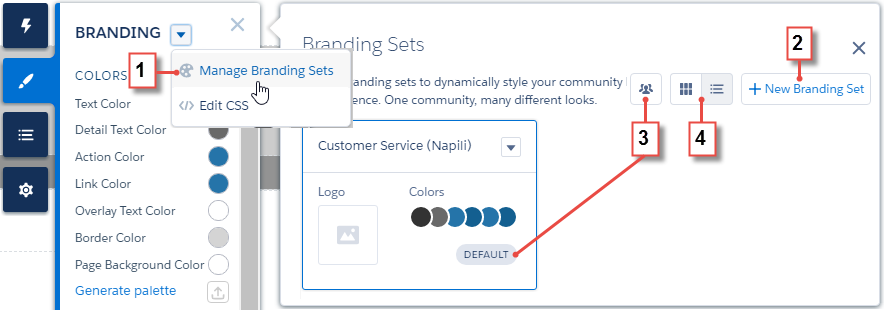
In Community Builder, you can:
- Manage branding sets from the Branding panel (1).
- Create a set of branding properties (2).
- Create or assign an audience to your branding set (3).
- Switch between a tile or list view of branding sets (4).
8. Developers, Build Your Community Your Way
#Communities #CustomTemplate
The Build Your Own template provides the basic pages every community needs: Home, Create Record, Error, Record Detail, Record List, Related Record List, Search, Check Password, Forgot Password, Login, Login Error, and Register. And you can easily add more pages and components for the experience you’re building. Customize your branding and themes to refine the look of your community.
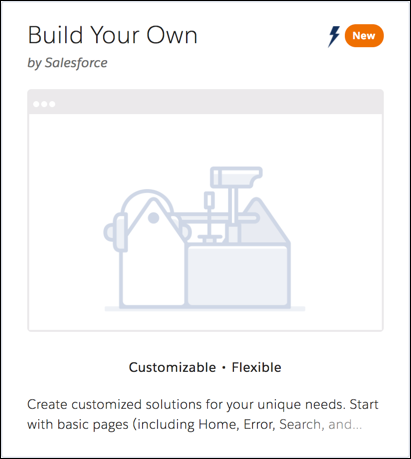
To view all components in the Components panel, select Settings | Advanced and click Show All Components in the Components Panel area.
9. Community Analytics: Community Pulse and Annotations
#Communities #Analytics
See the community stats you care about the most at the top of Workspaces and take action, plus communicate directly on dashboards.
You told us that you wanted to see your most important community stats in Workspaces. We heard you and present Community Pulse! Community Pulse displays up to six metrics of your choosing right at the top of Workspaces. Clicking a metric takes you to the related Moderation or Engagement report or dashboard so that you can take action or get more information.
Foster an environment of open communication sparked by Analytics dashboards embedded in your community. With the annotation feature, partners and customers can converse in Chatter feeds on individual dashboard widgets.
10. Make Your Lightning Pages Dynamic
#LightningAppBuilder #Customization
Now you can control when a component appears on a record page by adding filter conditions and logic to its properties. No need to add anything to your custom components. It’s all handled by the Lightning App Builder. For example, construct a filter that causes a rich text component on an opportunity page to display when the Amount is greater than $1 million.
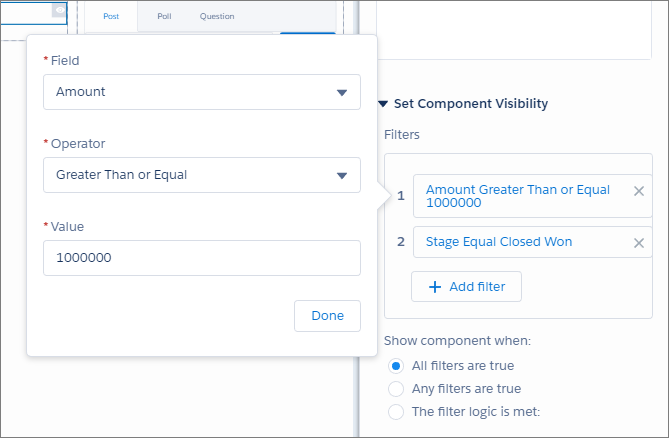
Component visibility filters are supported for standard components, custom components, and components from AppExchange. If you don’t define a filter, the component displays on the Lightning record page as usual. When you define one or more filters and set the filter logic for a component, the component is hidden until the filter logic criteria are met.
11. Salesforce DX: The New Frontier for Salesforce App Development (Generally Available)
#SalesforceDX
With a focus on source-driven development, Salesforce DX makes it easier for developers to build together and continuously deliver using the tools that make you most productive. Salesforce Developer Experience (Salesforce DX) will be generally available in mid-October 2017.
12. Build Exciting User Interfaces with New Base Lightning Components
#LightningComponent
Accelerate your development with a fresh medley of 30 new built-in Lightning components. The new components cover a broad range of user interface elements and give you a whole new toolbag for your development.
We are working to reach parity with the Lightning Design System components, and this release brings us closer to that goal. Here’s a visual summary of what we have in store for you.
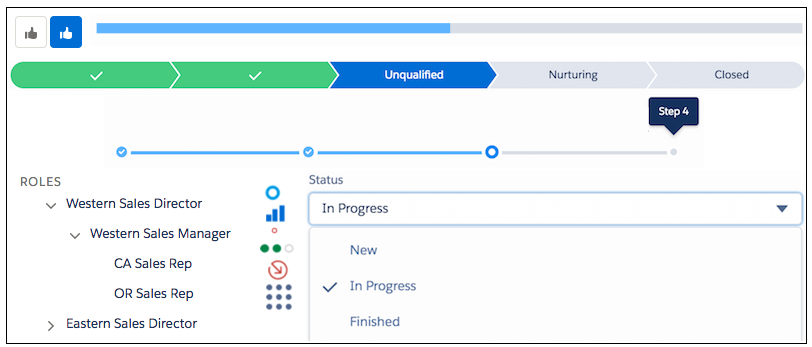
If this screenshot doesn’t do them justice, head over to New and Changed Lightning Components for a lot more detail, including many more screenshots.
There a lot many other feature as well, Offical release notes is available HTML format as well as PDF file.
#HappyLearning #Salesforceguy